TrioCFD 1.9.8
TrioCFD documentation
Loading...
Searching...
No Matches
Turbulent Flow in a Curved Pipe (3D)

Goals of the tutorial:

  • Using a turbulence model in TrioCFD: RANS or LES
  • Using a periodic box to obtain a developed turbulent flow for inlet boundary conditions
  • Using TrioCFD's parallel capabilities

The first figure below shows the geometry of the test case you will run in this tutorial. The second figure shows the inlet of the pipe, where the special periodic box computation will be used.
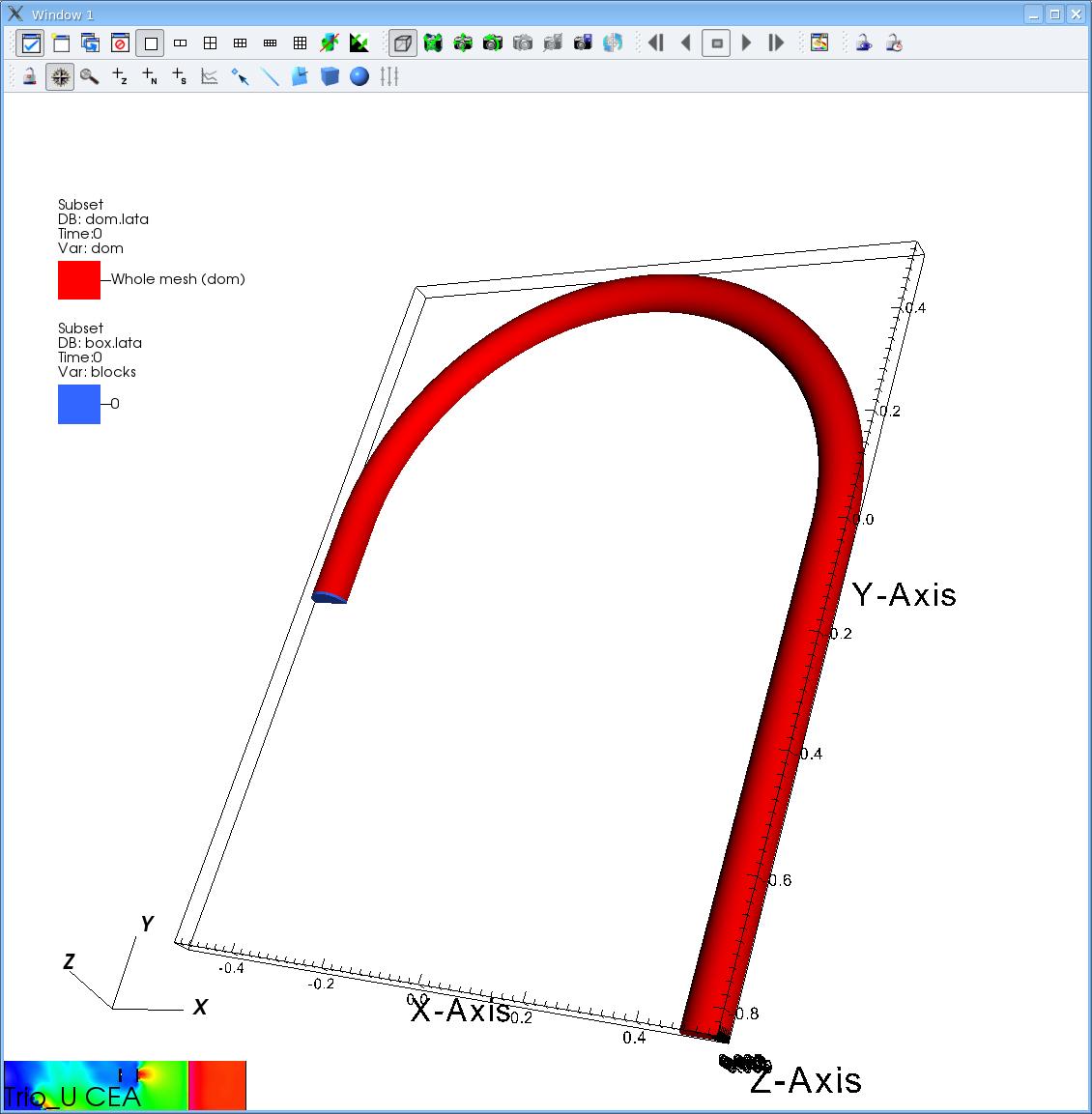
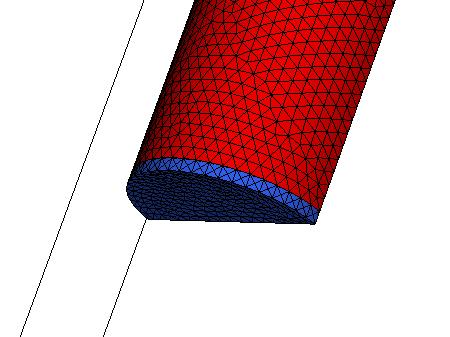
Geometry of the curved pipe
Zoom on the pipe inlet, with the periodic box in blue

Preparation of the tutorial

For this tutorial, start from an empty directory, e.g. TrioCFD_tutorial_curved_pipe and source the TrioCFD environment.

This tutorial will start from the validation form PeriodicBox. Use the following commands to copy this validation form:

mkdir -p PeriodicBox && cd PeriodicBox
cp ${TrioCFD_project_directory}/share/Validation/Rapports_automatiques/Turbulence/RANS/PeriodicBox/src/* .

You should now have several files in your PeriodicBox directory, including:

  • BuildMeshes.data: for generating the curved pipe and box meshes
  • PeriodicBoxRANS.data: for running the RANS simulation in the periodic box
  • DomainFlowRANS.data: for running the RANS simulation in the pipe with inlet steady boundary conditions
  • PeriodicBoxLES.data: for running the LES simulation in the periodic box
  • DomainFlowLES.data: for running the LES simulation in the pipe with inlet unsteady boundary conditions

Generating the meshes

Now you will generate the meshes. The pipe mesh is stored in an archive, simply decompress it using:

gunzip Tube_coude_463259.msh.gz

For the periodic box, the mesh will be generated by the tools provided by Trust. For this, run the BuildMeshes.data file with TrioCFD/TRUST:

triocfd BuildMeshes.data

This dataset will first partition the pipe mesh for 6 cpu parallel simulation, and then generate the periodic box mesh and partition it, making it usable with 2 to 6 cores.

You can look at the BuildMeshes.data and try to understand what each line does. The syntax is relatively straightforward.

Running the PeriodicBox simulations

Before running, open the files PeriodicBoxRANS.data and PeriodicBoxLES.data and change the parameter nb_pas_dt_max to 100, to shorten the simulations. Running the full calculations may take up to a few hours.

Then, run the simulations in parallel with two processes:

triocfd PeriodicBoxRANS 2
triocfd PeriodicBoxLES 2

Running the pipe simulations

Before running the simulations on the full pipe, take a look at the data sets for each simulation: DomainFlowRANS.data (resp. DomainFlowLES.data). To better visualize the differences between the two, you can open/edit them via meld:

meld DomainFlowRANS.data DomainFlowLES.data &

First, change nb_pas_dt_max to 10 in both files, to shorten the calculations.

You can see that the data files contain two problems, one for the box (pb_box) and one for the pipe (pb_dom). They will be coupled together, so that the pipe problem takes the output from the periodic box as its inlet boundary condition.

Notice that:

  • we use the last iteration of the previous calculation PeriodicBoxXXX as an initial condition for the box problem (pb_box).
    • This is done for the velocity field of the Navier_Stokes_Turbulent equation and for the temperature of the Convection_Diffusion_Temperature_Turbulent equation.
    • This initialization is done with the keyword Champ_fonc_reprise in initial_conditions, and using the argument last_time (at the end of the line). last_time can also be replaced by a specific time you want to use.
  • the special coupled boundary condition is done in boundary_conditions of the pipe problem (pb_dom) with the line: inlet frontiere_ouverte_temperature_imposee Champ_front_recyclage { pb_champ_evaluateur pb_box temperature 1 }
  • most of the differences between the 2 datasets are in the definition of the turbulence models: k-epsilon for the RANS simulation and WALE for the LES simulation, each having their own parameters.

Now, you can run the Pipe simulations:

triocfd DomainFlowRANS 6
triocfd DomainFlowLES 6

You can take a look at the result with visit. But using visit is out of the scope of this tutorial.